
Quickstart
10–15 minute tour — from empty project to an agent running its first plan in PIE.
[ Quickstart ]
From empty project to a running plan
The canonical "land on the docs, see an agent run a plan" tour. You'll build a forager agent that plans toward HasFood = true, picks the cheaper of two routes, and executes via the built-in dispatcher subsystem. No C++, no StateTree, no Behavior Tree required. By the end you'll have a working pawn in PIE whose live plan you can inspect.
The shape of what you're building
You're wiring this loop:
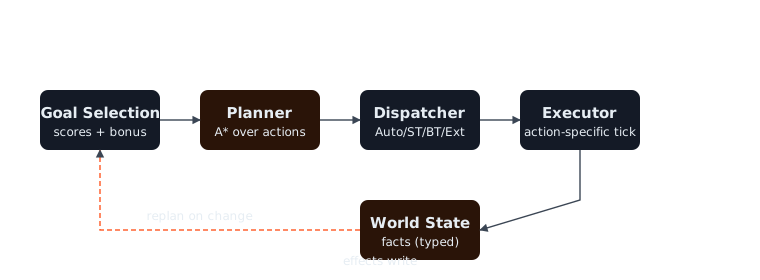
…by building these assets that compose into the agent:
Five data assets compose into one archetype; the archetype attaches to
a pawn via the UIntentForgeComponent. That's the whole picture — the
rest of the tutorial is filling these boxes in.
Step 1 — Create the fact schema
-
In the Content Browser, right-click → Miscellaneous → Data Asset.
-
A class-picker dialog opens. Search for FactSchemaAsset, select it, and click Select.
-
Name the new asset
DA_Schema_Forager. -
Open it. In the Facts array, add three entries:
Id Type Triggers Replan HasFoodBool true NearTreeBool true NearLakeBool true -
Save.
Step 2 — Author two actions
These represent two ways to get food: forage from a tree (cheap, slow), or hunt at the lake (more expensive but always available).
-
Right-click → Miscellaneous → Data Asset → pick IntentAction in the class picker. Name it
DA_Action_Forage. -
Open it and configure:
- Preconditions: add one row, set its type to Bool Fact Equals
→
FactId = NearTree,bExpected = true. - Effects: add one row, Set Bool Fact →
FactId = HasFood,bValue = true. - Executor Class:
Wait(from the bundled standard executors). - Default Params: set the type to
Wait Executor ParamsandOverride Duration = 2.0. - Cost Strategy: choose Constant and set
Cost = 1.0.
- Preconditions: add one row, set its type to Bool Fact Equals
→
-
Duplicate the asset (right-click → Duplicate), name it
DA_Action_HuntFish, and edit:- Preconditions: Bool Fact Equals →
NearLake = true. - Effects: Set Bool Fact →
HasFood = true. - Executor Class:
Wait, Override Duration = 5.0. - Cost Strategy: Constant,
Cost = 5.0.
- Preconditions: Bool Fact Equals →
The planner will prefer Forage whenever NearTree is true because
it's cheaper, falling back to HuntFish when only NearLake is true.
Step 3 — Author a goal
- Right-click → Miscellaneous → Data Asset → pick IntentGoal.
Name it
DA_Goal_Eat. - Desired State: one row, Bool Fact Equals →
HasFood = true. - Considerations: Goal Consideration: Constant,
Value = 1.0. - Priority:
1.0.
Step 4 — Bundle into an archetype
- Right-click → Miscellaneous → Data Asset → pick
IntentArchetypeAsset. Name it
DA_Archetype_Forager. - Schema:
DA_Schema_Forager. - Goals: add
DA_Goal_Eat. - Actions: add
DA_Action_ForageandDA_Action_HuntFish.
Step 5 — Put the component on a pawn
- Open any pawn Blueprint (a basic AI character will do).
- Add Component → IntentForge Component.
- In the component's Details panel:
- Archetype:
DA_Archetype_Forager. - Dispatch Mode: leave at
Auto(the default — uses the built-in dispatcher subsystem, no StateTree or BT needed). - Leave
Replan Safety Net Interval,Min Action Commit Time, andGoal Momentum Bonusat defaults.
- Archetype:
- Compile and save the Blueprint.
Step 6 — Sense the world
The simplest way to set facts is to call Set Fact Bool on the
component from Blueprint. For the tutorial, hardcode NearTree = true
in BeginPlay so the agent always plans to forage.
In your pawn's Event Graph:
- Locate Event BeginPlay (or right-click empty graph → search "Event BeginPlay" → click it).
- Drag from the Event BeginPlay execution pin (the white arrow). Release in empty graph space → the action-picker pops up. Type "Get Intent Forge Component" and select it.
- From the new node's blue Return Value pin, drag and release →
type "Set Fact Bool" and select the function. (Make sure it's the
one that takes a
Componenttarget, not the static helper.) - The Set Fact Bool node has two fields directly on the node body:
- Fact Id: type
NearTree(case-sensitive — match the schema). - Value: tick the checkbox to
true.
- Fact Id: type
- Click Compile (top-left toolbar) and Save.
In a real game these fact writes come from sensors on the archetype, gameplay events, or AIPerception bridges. The hard-coded write in BeginPlay is purely so this tutorial can run without level geometry. See the Cookbook recipe on sensors for the production pattern.
Step 7 — Run it
-
Drop the pawn in a level.
-
Hit Play.
-
Open Window → Developer Tools → IntentForge Live Inspector. Dock it wherever you have screen real estate.
-
The agent list shows your pawn. Click it. The right pane shows:
Archetype: DA_Archetype_Forager Goal: DA_Goal_Eat (score 1.00, cost 1.00) Plan: → [0] DA_Action_Forage (running) World State (v=2): HasFood = false NearTree = true NearLake = false -
After ~2 seconds the Wait executor completes, the planner re-evaluates, sees
HasFood = true, and the plan goes empty (goal satisfied). The Live Inspector shows the agent idle.
You've shipped your first plan. The rest of this page explains what just happened and points at where to go next.
What just happened, in 5 bullets
- The component asked the planner for a plan toward
Eat. - The planner enumerated actions whose preconditions held, found
Foragecheaper thanHuntFish, and returned a 1-step plan. - The dispatcher subsystem (built-in, default for
Automode) spawned aUWaitExecutor, calledEnterAction, and ticked it until the 2 s timer elapsed. - The component applied the action's effects (
HasFood = true) to its world state and tried to plan again. - The new plan was empty because the goal was already satisfied.
Where to go next
Planner, dispatcher, executor, and the planner-doesn't-execute rule the whole framework hinges on.
Make it stable /Anti-Flap ToolkitFive families that stop agents oscillating between near-equal goals. Read before you ship anything non-trivial.
Solve a problem /Cookbook25 recipes — sensor wiring, custom executors, debugging stuck agents, hot-swapping archetypes.
See it run /ExamplesSandbox sampler + Patrol/Chase agent with the full anti-flap stack toggled live.
Alternative runtimes (when you need them)
This tutorial used DispatchMode = Auto — the built-in dispatcher
subsystem ticks every Auto-mode component once per frame, with no AI
runtime required. Two other dispatchers ship in dedicated modules;
pick whichever fits your existing AI stack.
| Dispatch mode | Module | Use when |
|---|---|---|
Auto (default) | IntentForgeCore | No StateTree / BT / external controller. Simplest setup. |
StateTree | IntentForgeStateTree | You already author behaviour in StateTrees. |
BehaviorTree | IntentForgeBT | You already author behaviour in Behavior Trees. |
External | your own code | Custom Blueprint AI or third-party state machines. |
The contract is identical regardless of dispatcher — the component picks the action; the dispatcher's only job is to spawn an executor, tick it, and report terminal. See Concepts for the full details.